Complete Mac protection

More protection than Screen Time, built for the Mac. A kid can’t turn it off.

Screen Time is free, built in, and a good first step, especially on a phone. macOS 27 gives it a real refresh: Ask to Browse, Time Allowances, and Daily Schedules. But on a Mac the new controls still reach only Safari, still run on the kid’s clock, and still ask apps to stop rather than stopping them. Kidfence is a complete protection layer built for macOS: app and game blocking by code signature, network filtering in every browser, locked DNS and SafeSearch, browser lockdown, and screen-time that freezes, all enforced from a system service that a kid can’t simply switch off.
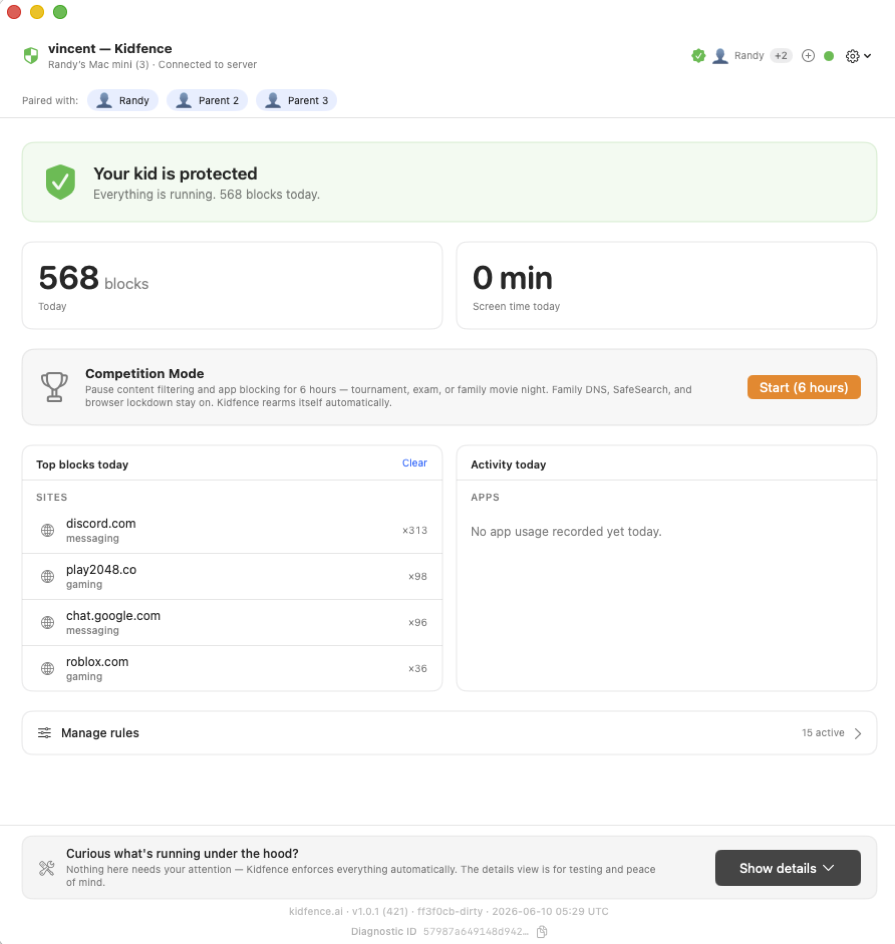
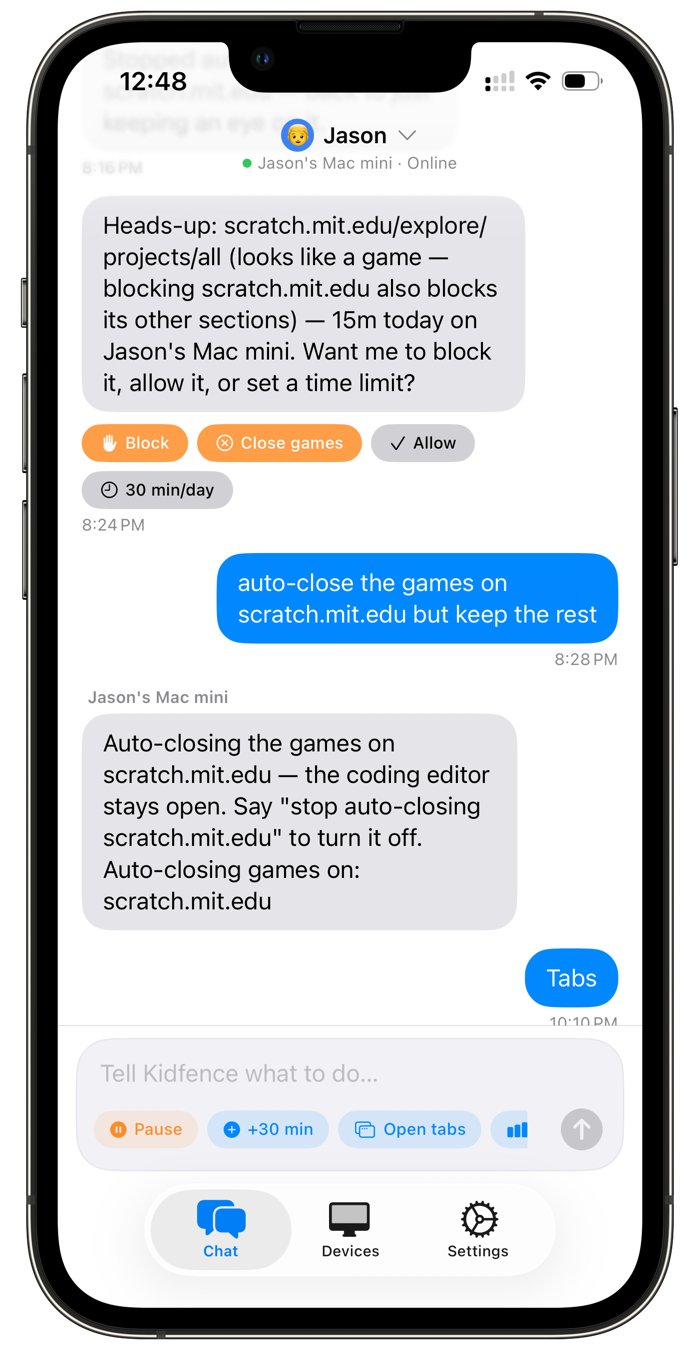
Kidfence on the kid's Mac: blocks today, top blocked sites, all protections active. The Kidfence parent app, controlling the kid's Mac by texting in plain English.
Kid can’t turn it off Enforced inside macOS
Survives a reboot And a new user account
Freezes apps Not just a reminder
Just tell it Plain-English chat

The one a kid can’t turn off

On a Mac, Screen Time can often be worked around: creating or switching to another user account, signing out of the Apple ID, changing the system clock, or installing a browser it doesn’t watch, and several of these have published write-ups. The macOS 27 redesign changed how limits are set, not how they’re enforced, so the workarounds carry over. Kidfence is designed so those don’t work. Enforcement runs from a system service that stays in effect across a new account, a sign-out, a clock change, a different browser, and a reboot, and removing it needs the parent admin password the child doesn’t have.

What macOS 27 added to Screen Time, and the holes it left

Apple’s September 2026 update is the biggest Screen Time change in years: Ask to Browse gates new websites, Time Allowances replace per-app caps with a daily budget by category, and Daily Schedules pick which apps are open at which hours. Good ideas, all of them. Here’s how each one holds up on a Mac against a kid who tests it.

1

Ask to Browse only watches Safari

Apple’s own description is “approval before your kids access a new website in Safari.” On the Mac, Screen Time’s web restrictions have never applied to Chrome, Firefox, Brave, Arc, or Edge, and Ask to Browse doesn’t change that. A standard account can install any of them without an admin password, just by dragging the app into its own folder or running it from Downloads.

What actually closes it: a network-layer filter that every browser and every app goes through, plus blocking unapproved browsers at launch by code signature so there’s no unfiltered path to try.

2

Pages open outside any browser

Type a URL into Spotlight and press Enter: the page loads in a stripped-down preview window that Screen Time neither counts nor blocks. Link previews in Mail and Messages, the built-in Help viewer, and any app with an embedded web view do the same.

What actually closes it: filtering the connection itself, so it doesn’t matter which window rendered the page.

3

Time Allowances and Daily Schedules run on the kid’s clock

Every Screen Time limit is evaluated against the Mac’s local date and time. Roll the clock back and the allowance refills; change the time zone and the schedule shifts. Apple’s own engineers, asked about this on their developer forums, pointed parents at a settings lock rather than a fix.

What actually closes it: a kid account that can’t change the clock at all (standard, not admin), with the schedule enforced by a root-level service the account can’t reach.

4

App limits ask the app to stop

Screen Time’s app blocking hooks the app after it launches, not before. So an app that starts as a background process slips past Downtime, “Block at End of Limit” is off by default and shows an Ignore Limit button when it is, the first limit each day offers One More Minute, and deleting and reinstalling an app resets its counter to zero.

What actually closes it: deciding at launch, in the kernel’s Endpoint Security layer, keyed on the app’s signature, so a renamed copy, a reinstall, or a background-mode trick all fail the same way.

5

It needs every device in the family on version 27

The new Screen Time only switches on when every device in the Family Sharing group, including the parent’s watch, is on iOS 27, iPadOS 27, macOS 27, watchOS 27, or visionOS 27, and the child is using a child Apple Account. One older iPad or a kid on an adult Apple ID and you’re back to the old Screen Time.

What actually closes it: enforcement that lives on the Mac itself, with no Family Sharing, no child Apple Account, and no other device to keep in step.

A longer, vendor-neutral write-up of the September update is on the blog: what Apple fixed, and the doors a Mac still leaves open. The full list of Mac workarounds is in How kids bypass Screen Time on the Mac.

Protection that goes further than Screen Time

Screen Time does time limits and basic web restrictions. Kidfence layers in the protections a determined kid on a Mac actually tests.

A pause button that actually lands

The nightly “time for bed” standoff is what parents use Kidfence for most. Tap pause on your phone and the Mac freezes distracting apps within seconds, then confirms back that it took effect. Screen Time’s remote Downtime travels over iCloud sync: it can take minutes to reach a Mac, and it never tells you whether it applied.

Apps & games, blocked for real

Roblox, Minecraft, Steam, Discord, or any app, blocked by code signature, so renaming the app to Homework.app doesn’t bypass it. Endpoint Security blocks at launch.

The whole web, filtered without a VPN

Adult sites, social, and time-sinks blocked at the network layer via SNI, with category and per-domain rules that go well beyond Screen Time’s web limits. No tunnel, HTTPS stays intact.

AI catches new sites Screen Time can’t

Kids hunt for fresh game, proxy, and unblock sites every week. Screen Time has no notion of categories for an unknown site. Kidfence uses AI to categorize unfamiliar sites on the fly, beyond a curated list of roughly 500,000 known ones, and blocks games, adult, and proxy sites so a brand-new URL isn’t an automatic loophole.

Locked DNS & SafeSearch

Family-safe DNS and SafeSearch on Google, Bing, and YouTube are pinned on at the network layer. They can’t be toggled off in the browser, and manual DNS edits are reverted automatically.

Browser lockdown

Kids download Firefox, Brave, or Arc to dodge filters. Kidfence blocks every browser except Safari and Chrome by signature, and disables incognito and private browsing, so there’s no filter-free way around it.

Closes the search-results loophole

Screen Time’s “Allowed Websites Only” is painful in practice: one page pulls in dozens of other domains you’d have to approve one by one, and it doesn’t pin SafeSearch on. A plain Google search for “js games” then surfaces playable games right in the results. Kidfence enforces SafeSearch, blocks game domains, and locks the browser down, so that gap is closed.

Closes the Gmail Chat loophole

Kids use school Gmail to chat all day. Kidfence’s browser extension hides the Chat, Spaces, and Meet panels while email keeps working, something Screen Time can’t do.

Instant “what’s he on?” with AI advice

Ask any time and get the live list of every tab open right now, with how long they’ve lingered on each. The AI reads it back in plain English, flags a quick break that’s become an hour on a game site, and suggests what to do, instead of leaving you to dig through Settings panes and charts.

Kidfence vs Apple Screen Time on the Mac

Screen Time is free and built in. This is where Kidfence does more on the things a determined kid tends to test.

Kidfence Apple Screen Time
Kid can’t disable it with a new user account Yes No
Unaffected by changing the system clock Yes Can be exploited
Still enforced right after reboot Yes Loads late
App blocking survives renaming the app Code signature Partial
Locks DNS & SafeSearch on at the network layer Yes No
Filters every site (no approve-one-by-one allow list) Yes Allow-list is impractical
AI categorizes brand-new / unknown sites on the fly Yes No
Blocks unauthorized browsers & incognito By signature No
Web filtering applies in every browser, not just Safari Network layer Safari only (Ask to Browse)
Blocks apps at launch, not after they open Endpoint Security Ignore Limit / One More Minute
App limit survives delete & reinstall Yes Counter resets
Works without Family Sharing or every device on the latest OS Yes All devices on 27 + child Apple Account
Hides Gmail Chat, Spaces & Meet Yes No
Bedtime freezes the app, not just a passcode prompt Freezes the app Reminder / passcode
Remote pause lands in seconds, with confirmation Seconds, confirmed iCloud sync can lag; unconfirmed
Controlled by plain-English chat Yes Settings panes
Shows you every tab open right now Yes No
Price $9.99/mo · $79.99/yr Free

Comparison reflects publicly documented behavior per Apple support documentation, Apple’s macOS 27 release notes, and independent testing as of September 2026. Screen Time behavior varies by macOS version and configuration. Apple, macOS, and Screen Time are trademarks of Apple Inc.; Kidfence is independent and not affiliated with or endorsed by Apple.

Screen Time first. Kidfence when it isn’t holding.

If Screen Time is doing the job for your family, keep using it, it’s free and well made. Kidfence is for the Mac where it isn’t holding up: a kid who’s found the workarounds, a laptop that’s really a homework machine, and a parent who wants protection that goes past time limits. Start with a 14-day free trial, no card needed.

Common questions

How does a kid get around Screen Time on a Mac?

The usual ones we hear are: creating or switching to another user account, signing out of the Apple ID, changing the system date and time, deleting and re-downloading an app, and installing a browser Screen Time doesn’t watch. Some of these have published write-ups. Kidfence is designed so those don’t work: enforcement is system-wide and survives account changes, sign-out, clock changes, reboots, and a change of browser.

Doesn’t Ask to Browse in macOS 27 fix web filtering on the Mac?

Only inside Safari. Apple describes Ask to Browse as approval before a child opens a new website in Safari, and on the Mac Screen Time’s web restrictions have never applied to Chrome, Firefox, Brave, Arc, or any other browser. A standard (non-admin) account can still install any of those without a password, and Spotlight’s web preview loads pages outside Safari too. Kidfence filters at the network layer, so every browser and every app goes through the same filter, and unapproved browsers are blocked from launching by code signature.

Do the new Time Allowances and Daily Schedules in macOS 27 make Screen Time enough?

They’re a better way to set limits, not a better way to enforce them. The limits still run on the Mac’s own clock, still show an Ignore Limit or One More Minute button unless Block at End of Limit is on, reset if the app is deleted and reinstalled, and can be slipped past by an app that launches as a background process. They also require a child Apple Account in Family Sharing and every device in the family on the version 27 releases. Kidfence blocks apps at launch from a system service, freezes them at bedtime, and works with no Family Sharing setup at all.

What about Apple’s “Allowed Websites Only” setting?

It works in theory but rarely in practice. Modern pages pull resources from dozens of other domains, so an allow-list means approving site after site just to make ordinary pages load, and it doesn’t pin SafeSearch on. With a search engine reachable, a query like “js games” returns playable games right in the results. Kidfence takes the opposite approach: filter everything by default at the network layer, enforce SafeSearch, block game domains, and lock the browser down, so there’s no allow-list to maintain and the search loophole is closed.

Can’t I already pause the Mac remotely with Screen Time’s Downtime?

Yes, with Family Sharing you can turn on Downtime for a child’s devices from your iPhone, and when it works it’s the same idea. The difference is in the delivery and the follow-through. The toggle travels over iCloud sync, which on Macs is well documented to lag, sometimes by minutes, and your phone never confirms whether the Mac actually applied it; you find out by walking over. Kidfence’s pause is pushed straight to the Mac over a live connection, lands in seconds, freezes distracting apps in place without losing work, and reports back so you know it took effect. If Kidfence’s protection is ever turned off on the Mac, you get notified of that too.

Is Kidfence worth paying for when Screen Time is free?

Only if free isn’t holding. If your kid hasn’t found the workarounds and a passcode is enough, Screen Time is great. Kidfence is worth it when the Mac is a real distraction battleground and you want enforcement a kid can’t shrug off, plus app blocking, web filtering, browser lockdown, and plain-English control that Screen Time doesn’t offer.

Does Kidfence replace Screen Time?

You can run both. Many families keep Screen Time for its built-in basics and add Kidfence for stronger app blocking, web filtering, and a bedtime that freezes apps. They don’t conflict.

What about their phone?

The phone is the one place the platform owners do this well: a managed child account with Family Sharing or Family Link is genuinely hard to disable. The Mac is the gap, and that’s what Kidfence focuses on, doing the Mac properly rather than every device half-well.

Keep their Mac on schoolwork

Start on your iPhone; it walks you through the Mac setup in about 10 minutes. 14-day free trial, no card, cancel anytime.